Image to SVG: a free in-browser tracer for cutters, lasers and plotters
Image to SVG traces a PNG or JPG into one clean path per color, in the browser tab, with no upload and no sign-in. What it is for: vinyl, lasers, plotters, screen printing, 3D printing and logos.
You have a picture you want to cut, engrave or draw: a logo, a decal, a quote in a nice font. Your cutting or laser software wants a vector file. The converters you find upload the picture to someone’s server, ask you to make an account, or hand back hundreds of tiny shapes that take longer to weed than the design took to make.
Image to SVG is our answer to that. It traces a PNG, JPG, WebP, GIF or BMP into an SVG with one clean path per color, and it does it inside your browser tab, so the picture never leaves your device and there is nothing to sign up for. It is free.
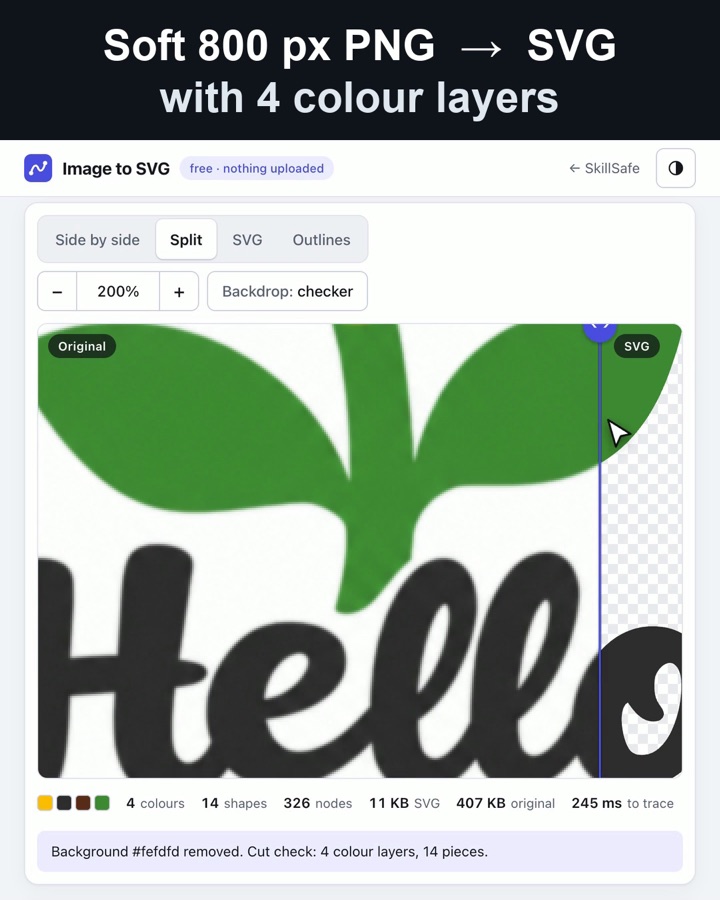
Figure: a slightly soft 800 px PNG (left of the handle) and its trace (right). The whole design came out as 4 color layers, 14 pieces and 326 nodes, in a quarter of a second. The sunflower is an AI-generated test image.
Try it in a minute
- Open image-to-svg.skillsafe.ai and drop a picture on the page. It traces straight away.
- Pick a preset. Vinyl cut gives one color for a decal or stencil, Layered gives a few flat colors with the background removed, and Logo picks the number of colors for you.
- Check the result. Drag the Split handle, or open Outlines and zoom in to see every node. The line under the preview tells you how many layers and pieces you will be cutting.
- Download an SVG, a .zip with one SVG per color, a DXF, or a PNG.
Prefer to watch? The five-minute tutorial goes from a fuzzy PNG to a one-SVG-per-color .zip, then takes a one-color quote all the way to an SVG and a DXF for vinyl, and ends on what does not trace well.
Video: PNG to SVG for Cricut, free in your browser: full tutorial (5:05, on YouTube). The presenter and the voices are AI-generated; every step and number in the demo was recorded in the app.
That is the whole tool for most people. The rest of this post is about what the files are good for, how the tracing works, and where it falls down.
What you can make with it
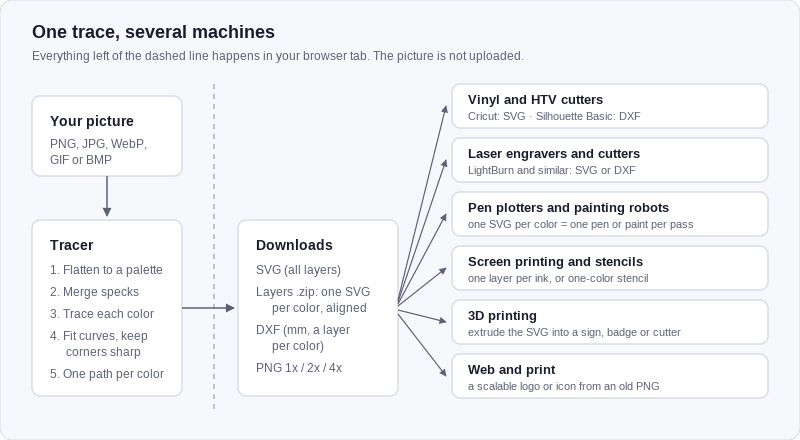
Figure: one trace, several machines. Only the tracing happens on your device; what you do with the file happens in your own software.
1. Vinyl decals and iron-on (Cricut, Silhouette)
Pick Vinyl cut for a one-color decal or Layered for a design with a few flat colors. Cricut Design Space separates an uploaded SVG into layers by color, which only works when every shape has a flat fill. Its help center explains that gradients and pattern fills break this, because they prevent “Cricut Design Space from separating your shapes into different layers based on the color” (Cricut Help Center). Flat fills and no clipping paths are exactly what the tracer writes.
For Silhouette, the edition matters: Silhouette’s support pages say Silhouette Studio “can open SVG files when using the Designer Edition or above” (Silhouette America Support). The free Basic Edition imports DXF, which is why the app has a DXF export. The same page warns that DXF files do not carry size information between programs, so the app tells you the size in millimetres and asks you to set it in your software.
2. Laser engraving and cutting
LightBurn lists both SVG and DXF among its vector import formats (LightBurn documentation). A trace with few nodes engraves and cuts more cleanly than one with thousands of tiny segments, and having one path per color gives you a natural way to split a design into, say, a filled area and an outline. This is where the tool was launched: the r/Laserengraving post asked laser users to send in files it gets wrong.
3. Pen plotters and painting robots
A plotter draws one pen, or one paint color, at a time, so a file with one layer per color maps directly onto passes. The Layers (.zip) download gives one SVG per color, all on the same canvas so they line up. One of the first commenters on the Reddit post planned to try it for WaterColorBot paintings. The WaterColorBot is an open-source painting robot from Evil Mad Scientist, driven by Inkscape extensions and its own RoboPaint software (Evil Mad Scientist wiki).
4. Screen printing and stencils
Each ink in a screen print needs its own film, which is the same split as one SVG per color. Pick Layered, set the number of colors to the number of inks, and download the .zip. For a spray-paint or airbrush stencil, Vinyl cut gives a single color. One caution: a stencil needs bridges to hold the islands in letters such as O and A, and the tracer does not add them, so add bridges in your editor before cutting.
5. 3D printing: signs, badges and cookie cutters
Most 3D design tools can import an SVG and extrude it into a solid, which is how a logo becomes a keychain, a sign or a cookie cutter (All3DP guide to SVG to STL). A trace with closed, non-overlapping shapes is what extrusion needs. The launch post was crossposted to r/3DPrintingTools by another user within hours, which is how we learned this crowd wanted it too.
6. Blueprints and line drawings
The Line art preset is black and white with the background removed, and keeps hairlines thinner than a pixel continuous. That suits scanned drawings, plans and hand-inked line work that need to be scaled up or cut. A commenter on the launch post said they would try it on large blueprint designs; we do not have their result yet.
7. Logos, icons and pixel art for the web
A logo that only exists as a PNG can be turned into an SVG that stays sharp at any size and is often smaller than the original file: the sample above went from 407 KB to 11 KB. Logo picks the number of colors automatically, and Pixel art keeps the image’s exact colors and square pixel edges. Copy code puts the SVG markup on the clipboard for pasting into HTML.
How the tracing works
For the curious, the tracer runs five steps in a Web Worker in your tab:
- Flatten to a palette. Colors are learned from the flat areas of the picture, not from the soft pixels along edges, so shapes do not get a halo of an in-between color.
- Merge specks. Regions smaller than a set area are merged into their neighbors, which is what keeps a cut file free of hundreds of crumbs.
- Trace each color on the pixel grid and remove the staircase.
- Fit curves. Outlines between real corners are fitted with cubic Bézier curves, straight runs stay straight, and corners stay sharp.
- Write one path per color. For cutting presets the colors are knocked out of each other so layers never overlap; for artwork presets they are stacked so no hairline gaps show.
Two details matter for cutting. Background removal drops the color that owns most of the border, plus small enclosed bits of it such as the insides of letters, but keeps a sizeable enclosed area (the whites of eyes) as its own layer unless you tick “Also remove that colour inside the design”. And a plain-words Cut check line reports the number of color layers and pieces, and warns when there are too many to cut or weed.
Small pictures are enlarged before tracing (up to 4×), so soft edges place outlines with sub-pixel accuracy. You can check the result in a Split view, an SVG-only view, or an Outlines view that shows every node, at zoom levels from 5% to 3200%.
What it does badly
Be honest with the tool and it will be honest with you. It is good at flat colors and bold shapes, and it is not good at:
- Tiny or blurry pictures. The same sunflower design at 180 px puts the dark lettering into the brown flower-center layer and gives the petals a pale fringe layer. Start from the largest version of the picture you have.
- Photos. The Photo preset gives a posterized result with flat color bands and a large file. That is a style, not a faithful copy. The Inkscape manual says the same of tracing in general: “If you expect a 100% faithful representation of your picture, though, only in vector format, you will be disappointed” (Inkscape Beginners’ Guide).
- Untested machine software. We have not yet opened these exact files in Cricut Design Space, Silhouette Studio, LightBurn or xTool’s software, or cut one. Do a small test cut before you trust a file with real material, and if something goes wrong, tell us.
Frequently Asked Questions
Is Image to SVG free?
Yes. Tracing, every preset and every download are free with no sign-in. The only paid part is the optional Refine with AI step, which needs a SkillSafe account and costs a fraction of a cent per run.
Is my image uploaded anywhere?
No. The tracer runs in a Web Worker inside your browser tab, so the picture stays on your device. The only exception is the optional Refine with AI step, which sends a small preview when you press its button.
Does the SVG work in Cricut Design Space?
Design Space accepts SVG uploads and separates flat-color shapes into layers, which is the kind of file the tracer writes. We have not yet tested these exact files in Design Space, so do a small test cut first and let us know how it goes.
Can I use it with Silhouette Studio Basic Edition?
Use the DXF download. Silhouette’s support pages say SVG needs the Designer Edition or above, while DXF imports into Basic. DXF does not carry size between programs, so set the size in Studio; the app shows the intended size in millimetres.
What kind of images trace best?
Flat colors, bold shapes and clean edges, from the largest copy you have: logos, decals, clip art, lettering and line art. The 800 px sample above traced cleanly; a 180 px copy of it did not. Small, blurry or photographic images trace badly, and photos come out posterized.
How is this different from Inkscape’s Trace Bitmap?
Inkscape’s Trace Bitmap does the same core job and is a good tool. The differences here are convenience: presets tuned for cutting machines, background removal, a cut check, one SVG per color in a .zip, DXF export, and nothing to install.